
Surface steps after CAM: where to look for the cause
Surface steps after CAM often appear because of a coarse tolerance, excessive smoothing or post-processor errors. We'll go through what to check step by step.
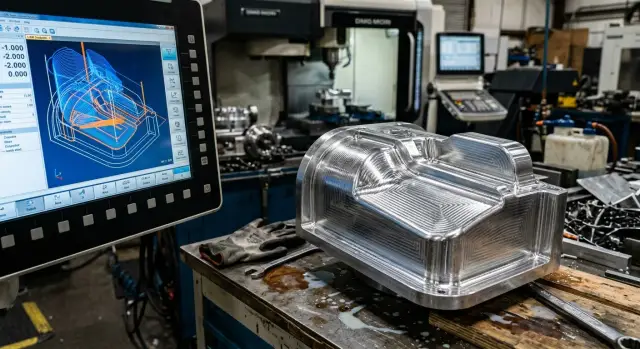
What these steps are and where they come from
Steps after CAM usually don't look like a random defect but as a repeating geometry. Instead of a smooth arc on a radius you see many small flat facets. On a 3D shape the surface runs in waves, and thin ribs appear at transitions, as if the model were assembled from many small patches.
This is most noticeable where the surface is supposed to be smooth: small radii, fillets, convex and concave transitions. On a flat area the defect might be barely visible, but on the highlight of a radius it's obvious.
It's useful to distinguish steps from other marks. A feed mark typically follows the toolpath uniformly and looks like a thin regular pattern from the tool step. Vibration leaves a different pattern: it is less predictable, often varies along the pass and is usually accompanied by noise. Steps more often look like a shape error rather than a normal cutting trace.
If you run your finger over the part, a feed mark feels like fine roughness. Steps are felt as transitions between levels. Vibration more often gives a rippling with uneven pitch and rarely repeats the model shape as precisely as a trajectory error.
The problem often starts in CAM, long before the first cut. The CAD model itself may be smooth, but CAM builds the toolpath by its own rules: it approximates surfaces with points, segments and arcs, applies tolerances, surface stepover and smoothing. If the tolerance is too coarse, the program allows deviation from the shape larger than acceptable for finishing. Instead of a smooth line the machine gets a set of approximations.
Sometimes the post output adds another error. CAM might compute a clean trajectory, and the post-processor later simplifies it, breaks arcs into short linear moves or rounds coordinates. On the part this looks like the machine 'doesn't hold' the surface, although the issue already exists in the G-code.
Therefore, start by looking not only at the machine, tool and cutting modes. If the defect repeats on the same radii and transitions, the cause is often geometric and must be sought in how CAM described the surface for machining.
Where to start checking
If steps appear on a part, don't rush to change feed, tool or cutting mode. First isolate the source: the model, the toolpath, the G-code or the machine run.
Ideally open three things side by side: the 3D model, the CAM toolpath and the final NC program. Inspect the same area, not the whole part. If the model is smooth, the toolpath already shows broken transitions, and the G-code contains many short segments, the search narrows quickly.
Next check where the defect occurs. If steps run across the whole part, the cause is often linked to global settings: CAM tolerance, finish stepover, smoothing or the operation template. If the issue is confined to one zone, local geometry, a complex transition, a small radius or an uneven stock left from the previous pass are more likely to blame.
One useful habit: first check what the previous operation left. A finish pass won't correct a coarse wave if roughing or semi-finishing left too large or uneven a stock. Then you'll see both finish marks and an older relief that the tool merely traced.
It's worth checking four things immediately: whether the problematic area matches in model, toolpath and G-code; whether the defect spans the surface or is local; what stock remains after the prior pass; and whether someone changed the CAM template before the run.
The last point is often underestimated. Shops frequently reuse an old template, tweak it slightly for a new part and forget that other people's tolerances, arc filters, surface stepover or strategy came along. On screen everything can look fine, but steps appear on the part.
If the template was recently changed, don't guess. Compare the current operation with the one that previously produced an acceptable finish on a similar part. That comparison usually saves more time than hunting for a machine cause.
How CAM tolerance changes surface shape
Steps often appear not because of the machine but already at the trajectory calculation stage. If CAM tolerance is too large, the program coarsely simplifies arcs, radii and smooth transitions. On screen this may look almost OK, but on the part the surface falls apart into short segments.
On a finish pass this shows immediately. Instead of a smooth shape you get a slight faceting, especially on inclined areas, radii and 3D surfaces. The smoother the intended line, the more visible the error from a coarse tolerance.
A too-small tolerance doesn't always help either. CAM then builds a very dense trajectory, the program grows quickly and the benefit is marginal. The machine and CNC have limits on frame processing rate and motion precision. The result can be a heavy file, extra load and sometimes even jerkier motion.
It's almost never correct to use the same tolerance for roughing and finishing. On roughing it's more important to remove material quickly and predictably. For finishing you need a stricter tolerance, but not extreme. Common practice: use a looser value for roughing, reduce it for semi-finish, and choose finishing tolerance based on surface requirements rather than 'the smaller the better'.
Another trap: sometimes CAM computes the trajectory correctly but the model itself is poor quality. If a part was imported as a coarse mesh after a bad export, the surface initially consists of many flat patches. No precise CAM tolerance will make that smooth.
Practical checks
Look at the geometry itself, not only the final toolpath. If the model already shows broken arcs or facets, the problem started before CAM.
Then compare two test calculations of the same operation with different tolerances. If reducing tolerance noticeably doesn't change the shape, the limitation is likely the model quality, the stepover, or the post-processor.
A good rule: tolerance should be small enough for your finish requirement but not so small that the program balloons without reason. Picking it by habit instead of task will leave steps even with careful setup.
Where to look in the stepover
Often visible ridges are caused not by the machine or tool but by too large a stepover. CAM creates passes with a set distance between adjacent lines. If that distance is large, steps remain on the part, especially after finish passes on radii and 3D forms.
On a flat surface this defect may be barely noticeable. On a convex or concave surface it appears immediately. The same stepover can be acceptable on a large radius and rough on a small one. That's why small radii need separate attention, not just global operation settings.
Look not only at the numeric stepover field but at the tool mark in the simulation. If the pass lines are visible on screen, they usually become even more visible on metal. This is especially critical where a mirror finish is expected without hand finishing.
Simple rule: reducing stepover almost always improves appearance but increases cycle time. The difference may seem small (0.6 mm vs 0.3 mm), but on the part it can double the visible ridge while cycle time rises by tens of minutes.
Check stepover by several signs: compare the actual mark on a flat area and on radii, see where residual ridge height changes, inspect the trajectory in the finest transitions and only then change feeds.
One often-missed point: stepover and feed must be evaluated together. A small stepover with too aggressive feed can give micro-rippling because of dynamics and motion smoothing. A calm feed with too large a stepover yields even but highly visible bands.
In the shop this shows quickly: a large arc may look acceptable, while near a small radius identical rings or waves appear. In that case reduce stepover in the problem area first before changing other parameters. It's faster than redoing the entire finish operation.
When smoothing helps and when it harms
Trajectory smoothing often helps when the program consists of many short segments. In that mode the machine repeatedly accelerates and slightly brakes, leaving fine marks. Smoothing removes these micro-stops and makes the motion steadier.
This is most noticeable on arcs, 3D surfaces and long smooth transitions. Without smoothing the toolpath feels broken; with smoothing the trace becomes cleaner and the cutting sound calmer. For many parts this improves surface without changing tool or cutting mode.
But heavy smoothing easily spoils precise geometry. The machine or CAM may start rounding where a precise size, straight edge or sharp transition should remain. On the part this looks deceptive: steps shrink but edges 'flow', fillets change or dimensions drift.
So smoothing is not a universal cure. It often helps on freeform shapes. Near precise edges, small radii, narrow pockets and areas with tight tolerances it may worsen the result.
The most reliable check is simple: calculate two versions of the same operation, with and without smoothing, then compare a short test. If the trace is cleaner and geometry preserved, smoothing works. If the surface softens but size or shape drifts, reduce or disable smoothing for that zone.
What a post-processor can spoil
Sometimes the issue lives not in CAM but in how the post-processor converts the trajectory to G-code. CAM may compute the surface correctly, but the code output loses precision and the finish shows defects.
A common scenario: the post takes an arc or smooth region and slices it into dozens of short linear segments. The machine follows them one after another and instead of a smooth line you get a small faceting. On screen this isn't always obvious, but on metal the defect appears quickly, especially on radii and 3D surfaces.
Another source of trouble is coordinate rounding. If the post writes too few decimal places, it eats precision on finishing. For roughing this might pass unnoticed, but on finish even thousandths can create visible steps on small radii and transitions.
The post can also spoil things in other ways: inserting extra commands that change feed briefly. Then the tool speeds up and slows down and the surface becomes uneven even with a correct trajectory. Sometimes the problem is not the feed itself but how the controller handles frequent mode changes.
There are also errors that immediately break geometry: wrong interpolation plane, confusion between millimetres and inches, incorrect absolute vs incremental format. If sizes drift or radii come out odd after output, check the post first.
In practice, four checks usually suffice: does the post keep arcs as arcs instead of replacing them with segments; how many decimal places does it write; does it inject frequent feed or helper commands; does it output the correct plane, units and coordinate format.
If steps appeared only after changing the controller, machine or post, suspect the post-processor. This is clear when the same CAM trajectory produces different NC files and therefore different surfaces.
Keep old and new NC files and compare them line by line before running. That quickly reveals where an arc became a set of segments, feed 'jumps' started, or coordinates lost precision.
How to test settings step by step
If you see steps, don't change everything at once. Otherwise it's easy to get lost and not understand what actually changed the surface.
Start with a short area where the defect is most visible: a small radius, an angled wall or a transition between two surfaces. On such a fragment it's easier to compare results and avoid wasting time on long test cuts.
A convenient check order
Create 2–3 versions of the same toolpath, changing only one parameter at a time. For example, first CAM tolerance, then trajectory smoothing, then a post setting that affects arc output or motion segmentation.
A typical workflow:
- Select the problematic area and save a baseline toolpath.
- Make several copies and change only one parameter in each.
- First compare code and simulation to spot extra segments, sharp breaks or odd rounding.
- Only after that cut a short test on stock or a test piece.
- After each trial record the result instead of relying on memory.
The idea is simple: if you change tolerance, stepover, smoothing and feed at once, the output won't tell you which change caused improvement or degradation.
Keep a simple log in a notebook: one line with toolpath version, changed parameter and what remained on the part. Short notes like 'steps reduced', 'smoother trace' or 'waves appeared' are enough.
When you find a good combination, save it as a template for similar materials, tools and surface types. In the shop this saves time: the next run starts from a tested base instead of from zero.
Common mistakes when hunting the cause
When steps show up many people immediately twist all settings at once. That almost always confuses things. If you change tolerance, smoothing and stepover in one go, you can't later tell which action spoiled the finish.
The right path is simpler: change one parameter, save the file and compare results. Even two test parts yield more insight than ten guesses at the controller.
A frequent error is trying to 'fix' CAM when the problem isn't in the toolpath at all. A worn tool, spindle runout, excessive overhang, weak clamping or an unsuitable cutting mode also produce ripples and marks resembling program errors. If a cutter chatters, heats or leaves marks only on one side of a pass, look beyond the model and code.
Another common mistake is ignoring what roughing left. If roughing left an uneven stock, finishing will remove metal unevenly and create waves, and the operator blames trajectory smoothing. In reality the finish simply reproduced the earlier relief.
Many blame the machine without opening the post-processed code. Yet CAM might have calculated a smooth arc while the post output it as many short segments. In CAM everything looks neat but the NC shows the staircase. Checking the code takes minutes and often reveals the issue.
There is also another trap: using an STL or poorly imported model and expecting a mirror finish. If the source geometry is already triangulated or coarsened, CAM will faithfully follow that shape. Neither a tiny tolerance nor soft smoothing will turn a coarse mesh into a smooth surface.
In practice the four checks that solve most cases are: change only one parameter at a time; inspect the surface left after roughing before running finishing; open the post-processed code to see if arcs are cut into segments; and ensure the source model is a proper solid or quality surface, not a coarse STL.
This approach saves time. Instead of arguing 'machine or CAM', you quickly narrow down causes and find the real source of marks on the part.
A simple shop example
A part with a long smooth radius showed clear ribs after finishing. Visually it looked like the tool followed a series of short straight moves rather than a smooth curve. The operator first blamed the machine, but the surface pattern repeated too evenly — a sign of a program issue.
Inspection revealed that roughing and finishing used the same coarse CAM tolerance. That may be acceptable for roughing but for finishing such tolerance spoils the trajectory, especially on radii and transitions.
Next they checked the post output and found a second cause: the post rounded coordinates too aggressively. The trajectory was simplified twice — first in the CAM calculation, then again in the NC output. As a result the smooth surface lost accuracy at two stages.
The programmer didn't redo everything. He tightened tolerance only for the finish operation, left roughing settings as before, changed arc output so the post wouldn't break smooth regions into extra short segments, and reduced coordinate rounding in the program.
They ran the part again. The surface became much smoother and the ribs nearly disappeared. Cycle time increased only slightly because roughing was unchanged and precision was raised only where needed.
This example shows a simple point: if you see steps, don't immediately blame the machine, tool or cutting mode. First compare three items — CAM tolerance, trajectory smoothing and how the post outputs arcs and coordinates. Very often the issue sits in that chain.
What to do before the next run
Before recalculating don't change all parameters at once. If you tweak tolerance, smoothing and the post simultaneously, the cause quickly disappears. Instead check each item in turn and save the result after each change.
First look at the model. If the surface already has gaps, bad patch joins or an extra facet from export, CAM won't fix it. CAM computes a trajectory from the geometry it got, so sometimes steps are searched in the machine while the problem is in the file.
Set a separate CAM tolerance for finishing. Roughing and finishing shouldn't follow the same rules. A coarse value simplifies the trajectory but sacrifices surface shape; an extremely small tolerance without need bloats the program and the machine may not execute the tiny moves as expected.
A short checklist before running:
- Check the model before computing the toolpath: patch joins, export quality, no extra facets;
- Set a separate tolerance for finishing and don't pick it by eye;
- Calculate two versions: with smoothing and without;
- Open the post-processed code and check how it outputs arcs and how many decimal places it writes;
- Compare simulation and actual code, not just the CAM picture.
Smoothing often helps remove extra segmentation but can also change geometry at transitions and small radii. Therefore two versions of the same operation usually tell you more than arguing at the machine. The difference is usually obvious quickly: the surface becomes smoother or edges start to drift.
Also check the post-processor separately. If it replaces arcs with short segments, rounds coordinates coarsely or otherwise slices small moves, finish quality almost always suffers. In CAM the trajectory may look fine, but the final code can already contain the error.
If the boundary between a CAM, post-processor and machine issue remains unclear, a second opinion helps. At EAST CNC such cases are typically analyzed in order: geometry, toolpath, post-processor and only then the machine. This is often faster than suspecting each link in turn.
FAQ
How to tell that these are CAM steps and not vibration or feed marks?
Steps usually repeat the model's shape: on a radius you see small flat facets, and transitions show even ribs. Vibration produces a more chaotic rippling, often changing along the cut and usually audible. A feed mark feels like fine roughness, while steps feel like level changes between layers.
Where should I start checking if steps appeared on the part?
Open the model, the toolpath in CAM and the final G-code side by side. Inspect the same area, not the whole part. If the model is smooth, the toolpath already shows broken segments, and the code contains many short lines, you'll find the source quickly.
Which CAM tolerance should I check first?
Finish passes almost always require a stricter CAM tolerance than roughing. If you used the same value for all operations, separate them first. Then calculate two versions on the same area and compare the toolpath shape, not just the number in the setting.
Will a very small CAM tolerance remove the steps?
No. An extremely small tolerance won't always improve the surface. It bloats the program, burdens the CNC and can actually make motion less smooth. If reducing tolerance significantly doesn't change the shape, look at the model quality, the stepover or the post output instead.
How does stepover affect visible bands on the surface?
The larger the stepover between passes, the higher the remaining ridge on radii and 3D surfaces. On a flat area this may be acceptable, but on a small radius the defect is obvious. If stripes run consistently along a curve, first reduce the stepover in the problem zone.
When does smoothing improve the surface and when does it make it worse?
Smoothing helps when the program contains many short segments and the machine repeatedly accelerates and brakes, leaving fine marks. But near precise edges, small radii and tight tolerances it can soften the geometry too much. The simplest test is to compute two versions, with and without smoothing, and compare a short sample cut.
What does the post-processor most commonly spoil in finish machining?
Most often the post-processor ruins finish by cutting arcs into many short linear moves or by rounding coordinates too coarsely. It can also inject commands that change feed briefly. If steps appeared after changing the post, controller or machine, compare the old and new NC files line by line.
Should I check what roughing left before finishing?
Absolutely. If roughing or semi-finishing left an uneven stock, the finish pass will simply repeat that relief. In that case you'll see not only finish toolpath marks but also the older waves from the previous operation.
How should I test settings so I don't get confused about the cause?
Change only one parameter at a time and cut a short test on the area where the defect is most visible. After each trial record what you changed and how the surface looked. This way you can quickly determine whether tolerance, stepover, smoothing or the post is to blame.
What should I do before the next run so steps don't come back?
Before a new run check the model quality, set a separate CAM tolerance for finishing, calculate versions with and without smoothing, and then open the final code. If the model already has facets or the post cuts arcs into segments, the machine won't fix it. This quick checklist usually prevents repeat parts.