
Residual material in CAM: how to avoid missing dangerous zones
Residual material in CAM often hides after roughing. We'll cover where it stays, how to find it before finishing and how to avoid a cutter hit.
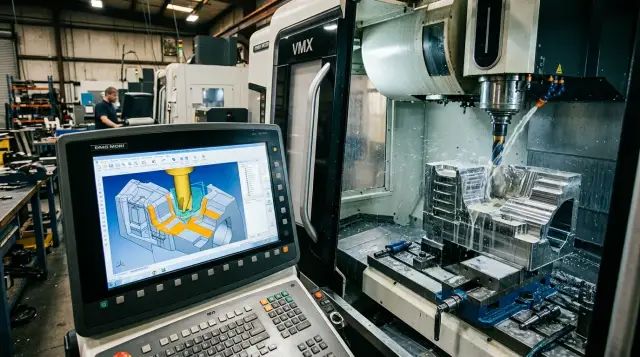
Where the problem appears
The issue shows up right after roughing, when the program has removed the bulk of the metal but didn’t reach tight places. Residual material most often hides in internal corners, deep pockets, next to vertical walls and at level transitions. On the screen the part can already look finished, while strips and “islands” of metal remain that the finishing pass later hits.
This happens for a simple reason: the roughing cutter can’t reach every corner with its radius, and the toolpath uses a step that favors time over accuracy. If the Z-step is large, ridges remain on sloped and stepped areas. If the stock allowance is set too high, CAM shows a “reserve for later,” but in reality that reserve sometimes turns from an easy finish into almost a repeat of roughing.
This is where residual material in CAM is often underestimated. Visually the model looks clean: the wall is straight, the pocket open, the contour reads well. But the cutter doesn’t see an image — it sees actual metal thickness. For a finishing cutter the difference between 0.2 mm of leftover and a 1.5 mm local build-up is huge. On the finishing pass this immediately changes load, cutting sound and tool behavior.
You’ll see this problem most often on parts like:
- deep pockets and wells
- internal corners with small radii
- parts with stepped heights and frequent Z transitions
- housings with thin walls and ribs
- zones near bosses, slots and protrusions
In parts for automotive, construction equipment and medical assemblies this occurs regularly because geometry is dense and tool access is limited. On both 5-axis and standard machining centers the reason is the same: the roughing strategy removes volume quickly, but not always evenly.
The trickiest situation looks like this: the simulation shows a calm finishing pass, but in real machining the cutter suddenly hits remaining metal from the side. The operator hears a bang in the sound, the spindle registers a load spike, and the surface gets marks. The error didn’t start on the finishing operation — it appeared earlier, when the roughing toolpath hid the residual material instead of exposing it.
Why this ends with a cutter hit
The finishing pass is designed for a thin allowance. The cutter should skim off a uniform layer, not dig into full metal. If an unmachined pocket, protrusion or narrow shelf remains after roughing, the finishing toolpath enters as if everything were prepared. On the machine this looks simple: the sound changes in a fraction of a second, the spindle strains, and the tool receives an impact load.
This is most pronounced at the bottom and in internal corners. Chips have a harder time evacuating there, and cutter contact with the metal increases sharply, not smoothly. An internal corner already stresses the tool more because the turn radius is small. If CAM didn’t see residual material there, the cutter instead of light finishing gets a chunk of full removal. Even a few millimeters missed can produce a completely different load level.
Usually a chain of problems follows:
- vibration and marks on the wall;
- edge chipping or rapid dulling;
- size drift, especially on corners and bottoms;
- the next part has the same defect if the operator didn’t spot the cause.
The danger is that residual material in CAM often doesn’t look dramatic on the screen. In the model it can be a thin strip or a small island. But for a finishing cutter the difference is huge. It expected a stable cut and instead hit a spot where the metal resists several times more. That causes the jerk, runout, and risk of breaking the tool on an almost finished part.
One missed bit rarely ends with just an extra mark. The operator must stop the program, check dimensions, change the tool, sometimes locally re-rough, and only then return to finishing. If the part is near completion, the cost of the mistake is higher: time is lost, tooling consumption rises, and sometimes it’s easier to remake the part than to try to save the size.
So a missed residual is not a small trajectory calculation detail. It’s a direct path to a cutter hit at the moment when the process is supposed to be calm and predictable.
Where CAM most often misses residuals
Residual material in CAM is usually lost not because of one big mistake, but because of a couple of small settings no one checked before calculating the toolpath. On the screen everything looks clean, but on the machine the finishing pass unexpectedly cuts not a thin layer but almost full metal.
The most common cause is outdated tool data in the library. If CAM has one cutter diameter recorded but a different one is actually used, the program computes residuals incorrectly. A difference of a few tenths already changes the picture in narrow pockets, near walls and at radius transitions.
Wrong allowance after roughing causes just as many problems. Suppose the engineer intended 0.3 mm, but the operation accidentally has 0.8 mm or zero. Then the finishing toolpath is built on false geometry. In one place the tool moves in air, in another it receives excess load.
A too-coarse simulation tolerance also causes trouble. The model looks smooth, but small steps, corner residues and narrow strips of metal aren’t visible. This is especially dangerous on parts with small radii, chamfers and short height transitions.
Another common failure is not calculating the leftover stock between operations. Then each subsequent operation assumes nobody has cut anything before it, or it assumes the blank is more optimistic than reality. As a result the toolpath is built without considering the real part condition.
The problem is amplified if the engineer works with a simplified model. Small chamfers, fillets or minor pockets may be removed to speed calculations. For roughing this is sometimes acceptable. For semi-finish and finish it’s risky, because residual metal often remains exactly in those omitted places.
Typical warning signs are:
- the simulation looks too smooth;
- the tool runs through narrow zones without slowing;
- inexplicable strips remain at the wall after roughing;
- the finishing operation locally removes noticeably more than planned.
If you see these signs, don’t trust the pretty picture. Check the tool library, the allowance, simulation tolerance and the part model. In practice these four checks are where residual material is most often hidden — the same residual that later hits the cutter on the finishing pass.
How to check for residuals step by step
If uncalculated zones remain after roughing, the finishing pass will almost always reveal them first. The cutter will enter deeper than expected, load will spike, and a calm toolpath turns into a risk.
Start by checking the tool
Begin not with the simulation but with the database. If CAM lists a milling tool with the wrong diameter, corner radius or stick-out, computing residuals is almost pointless. The program will build toolpaths for one geometry while the machine uses another.
A good habit is simple: open the tool card and manually verify three things. The cutting diameter, the corner radius and the actual stick-out from the holder. An error of a few tenths often lurks until finishing and then appears in a narrow pocket or at a bottom.
After that, set the allowance without guessing. For walls and bottoms it’s better to use concrete values based on material, part rigidity and strategy rather than rounding “by eye.” Otherwise the residual material in CAM will be either over- or under-estimated and the check loses meaning.
Then compare residuals and finishing
Next, enable residual calculation from previous operations. Many people skip this and compute the finishing as if roughing had removed all excess evenly. On a simple part this sometimes gets away. On pockets, radius transitions and deep corners this approach often produces surprises.
A useful order is:
- Recalculate the roughing operation and save it as the residual source.
- Build the finishing considering what actually remains after the previous pass.
- Play the simulation not entirely, but through the problem areas.
- Compare where the cutter path goes and where metal still sits after roughing.
Look at specific zones, not the overall pretty picture. Corners, narrow pockets, bottoms and internal radii produce the most misses. If the finishing path enters those areas at full cutting width when it should be a light skim, adjust the settings immediately.
This check takes a few minutes. It helps catch excess allowance before sending the program to the machine, instead of discovering edge chipping or impact marks later.
A simple shop example
Imagine a housing part with a deep pocket and an internal corner radius. From above the pocket looks clean, walls after roughing already straight, and the model doesn’t raise alarms. But a small ridge of metal remains in one corner. The 16 mm roughing cutter left it because the corner geometry is narrower than the cutter’s reach.
On screen this is easy to miss. If you only inspect the overall toolpath, it looks like roughing removed material with the intended allowance. In reality the residual sits deeper at the wall-to-bottom transition, where the internal corner radius is smaller than the roughing tool’s path.
Then they put a 10 mm finishing cutter. The logic is clear: it’s thinner, so it will reach the corner and clean the allowance on wall and bottom. The problem is that the finishing pass is designed for a small cut, not a large one. When the tool enters the corner it encounters significantly more metal than expected, not tenths of a millimeter.
At first you hear it in the sound. Then spindle load grows, and the cutter starts cutting sideways where it should only be refining the surface. If feed was set for a normal finishing operation, the tool can’t smoothly recover from the overload.
The typical scene:
- straight sections run calmly;
- in one corner a sudden heavy sound appears;
- the part shows a rubbing mark or a step;
- the cutter edge chips.
After that the part isn’t usually scrapped immediately, but time is lost. The operator stops the machine, inspects wear, runs a repeat pass or adds a local cleanup with a smaller cutter. Sometimes that single corner makes the finishing take twice as long as planned.
This is exactly how residual material in CAM turns from a small on-screen inaccuracy into a common shop problem. One missed ridge after roughing causes a cutter hit on the finishing pass, spoils the surface and adds an extra cycle. It’s much cheaper to find that corner in the simulation than to deal with it on the machine.
How to set up machining without surprises
A calm finishing doesn’t start on the last pass — it starts earlier. If you mix roughing, residual cleanup and finishing into one logic, the small cutter later meets material no one expected. That’s how residual material in CAM becomes a chipped edge, a surface mark or an extra machine stop.
It’s better to split the work into three separate operations. First a large tool removes the main volume. Then a dedicated residual cleanup operation addresses only the places the large tool physically couldn’t reach. Only after that comes the finishing pass, built on known geometry and with predictable load.
Working scheme
A good setup usually looks like this:
- assign a clear tool and allowance for roughing;
- select a smaller cutter for residual cleanup and limit it to uncut zones;
- leave a minimal, predictable cut for finishing;
- check each operation’s entry and exit into material immediately.
The most common mistake is simple: a small cutter is given the whole model. It then spends time where the large cutter already removed material, and it can also enter corners too deeply. Much better is to give it only the residual areas after the previous tool. Then the toolpath is shorter, cleaner and calmer.
Set allowance as a number, not as a vague “reserve.” If you leave 0.5 mm in roughing, that value should be visible in the operation, not just remembered by the engineer. When allowance varies from part to part, finishing can’t be considered predictable.
Also check entry and exit. Even a correct path can cause an impact if the cutter plunges nearly vertically into a wedge of remaining metal. Safer is a smooth ramp-in, a short retract and verified transitions between levels.
One small habit that often saves time is consistent naming. If operations are named like “Rough_D20”, “Resid_D8” and “Finish_D6”, you immediately see the order, tool and purpose. In the shop this reduces confusion better than any long note.
In EAST CNC practice this order is especially useful for parts with steps, pockets and narrow internal radii. The error rarely looks big on the screen, but you hear it immediately at the machine.
Common configuration mistakes
One of the most expensive CAM habits is copying an old operation and changing only the contour. The tool often remains the same by mistake. Visually everything looks similar, but in operation the difference is large: different diameter, stick-out, feed. As a result the finishing runs where the old cutter could still pass, while the new one already engages leftover material.
Another common mistake concerns residual calculation. Many compute residual material in CAM from the original 3D model instead of from the previous trajectory. On screen that looks neat, but the program ignores that roughing actually didn’t remove everything. This is most evident in deep pockets, at radii and in places the roughing cutter physically couldn’t reach.
The problem worsens when the step-over is too large. If the step is chosen to speed up calculation, CAM may simply miss a narrow strip between a wall and a radius. The overall view looks clean. On the part a thin ridge of material remains, which the finishing cutter then hits. One such miss easily causes a sharp load increase and a surface mark.
Simulation is also often misused. The operator checks the overall view, spins the model, doesn’t see obvious issues and considers the program ready. But the overall view almost always hides small residuals. It’s better to search using sections, zooming problem areas and layer checks. For a complex part one pretty render isn’t enough.
Before sending a program to the shop, it’s useful to run a short checklist:
- verify the tool in the operation against the tool card;
- check what the residual is calculated from;
- reduce step-over in narrow areas;
- inspect sections in radii, pockets and steps;
- run a short dry run without cutting.
Many skip the last item to their regret. Five minutes of dry run often saves a cutter, a blank and a couple of hours of troubleshooting. If the program is new or the part complex, spend those minutes up front rather than hunting a cause at the machine after a hit.
Quick check before the finishing pass
Before finishing it’s better to spend 3–5 minutes checking than to change a cutter and chase dimensional defects later. Most often the issue isn’t the finishing operation itself, but that metal remained somewhere after roughing that the program or operator didn’t notice.
First verify the tool. The cutter diameter in CAM must match what’s actually in the spindle, including wear compensation. If the program uses a 10 mm cutter but the machine has 9.8 mm or a different geometry, the toolpath will behave differently than expected.
Before start, run through this short list:
- Check the tool number, actual diameter and stick-out.
- Play the simulation and inspect corners, internal radii and pocket bottoms.
- Make sure the finishing doesn’t plunge into full metal at entries or transitions.
- Assess rigidity: with long stick-out even a small residual causes vibration.
- For local islands and narrow spots create a separate operation instead of leaving them to finishing.
Residual material in CAM most often hides in small radii, at walls after adaptive roughing and at pocket bottoms if the Z-step was too large. On screen this looks harmless. On the machine the same zone can cause a sharp load spike, and the finishing cutter instead of a light skim starts cutting almost like roughing.
Also check stick-out. If a tool protrudes 60 mm but the real depth is 35 mm, reduce the exposed length. Rigidity improves at once and the cutter will pass residual zones more calmly. This is especially noticeable on thin walls and small corner radii.
A simple rule: if you see even one area where the finishing removes more allowance than planned, don’t hope the machine will forgive it. It’s simpler to do a small residual cleanup than to risk chipping the cutter on the final pass.
What to do next
Don’t try to rework all programs at once. Take one representative part where misses occurred after roughing and run the whole route again: roughing, residual check, finishing, simulation, release. One such test quickly shows where the error appears — in strategy, the tool, allowance or transitions between operations.
A simple rule for all new programs is most useful: check residuals first, then release to the shop. If you skip that step, the finishing pass will inevitably run into leftover metal. Usually that ends not in theory but in a chipped edge, a surface mark and extra time to redo.
A short practical sequence helps more than any general instruction:
- after roughing, inspect zones the tool physically couldn’t reach;
- compare the post-machining model with the target geometry;
- separately check corners, narrow pockets, steps and deep walls;
- before releasing the program play the simulation at plunges and transitions.
If you use residual material in CAM as a mandatory check, many problems disappear before the first part. This is especially noticeable on complex geometry where roughing removed almost everything but left small islands in corners or at radii.
Another practical step is marking dangerous zones in the routing card. The operator and setup tech should immediately see where to expect residuals, which tool goes there and which area to watch on the first run. Sometimes a short note is enough to save an hour at the machine.
For example, you can write plainly and briefly: “Check residual after roughing in the pocket lower radius” or “Watch the first finishing pass for this area on screen.” Such notes work better than long explanations.
If the problem repeats across similar parts, consider reviewing not only CAM settings but the entire machining scheme. In such cases EAST CNC can help with consultation, machine selection, supply, commissioning and service. This is useful when choosing equipment and you want to build a route from the start without surprises on the finishing pass.