
Integrating a Machine with ERP: Which Data to Send
Machine-to-ERP integration doesn’t require a complex start. We’ll explain which data to send first and how to avoid unnecessary sensors.
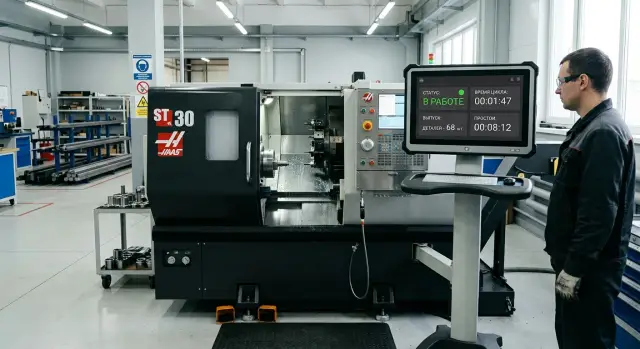
Where counts diverge between the machine and ERP
Records start to lie the moment the machine and ERP run on different clocks. The machine has already processed part of an order, stopped and restarted, but the system still shows the old number. For the shop floor this isn’t small — it’s a daily lost fact.
Most often the operator records output at the end of the shift. That’s understandable: during the day they watch tools, part dimensions and loading. By evening some events have already faded from memory. Short stops, a test part, setup operations, a few rejects — all of these easily miss the report.
Because of this, data arrives in ERP late and in a reduced form. Planning looks at yesterday’s picture and reacts too slowly. The dispatcher thinks the order is almost ready, procurement doesn’t move the next material batch, and the foreman doesn’t see that the machine has been losing time for the third hour.
With downtimes it’s even worse. Everyone notices a major breakdown, but ten stops of 6–8 minutes often aren’t logged precisely. On paper the shift looks normal; in reality the machine lost almost an hour. ERP learns about this too late or not at all.
The same facts usually go missing: the moment a cycle starts and stops, actual run and downtime, the number of good parts and rejects, and the reason for a stop or delay. When these data are absent or only reported once per shift, the team argues not about causes but about numbers. The foreman reads the log, the operator recalls from memory, planning takes data from ERP, and everyone gets a different picture. Integration is needed not for a pretty report, but so everyone sees the same thing.
This is especially clear in metalworking. On a CNC lathe production can run smoothly until small tool or material issues begin. If ERP only sees the shift-end total, it’s already late. The error doesn’t appear in the report — it occurs the moment a fact isn’t sent immediately.
Which data are needed first
You don’t need to pull everything the CNC can provide at the start. Too much data turns records into noise. Better to take a short set that immediately affects planning, deadlines and cost.
First — the machine state. ERP should see three clear statuses: machine running, machine stopped, machine in alarm. That alone is enough to know how much time the equipment actually cuts metal, how much it waits, and where shift hours disappear.
Second — the start and end of a production job. ERP doesn’t need the CNC’s internal logic. It needs a simple fact: which job the machine started and when it finished. Then the system can link part output to a specific order, shift and operator.
Third — cycle time and the number of finished parts. Cycle time shows how long one part or one program pass takes on average. The count of finished parts is needed to track output without manual end-of-shift entries. Even if you don’t count each part individually, recording completed cycles makes the picture noticeably more accurate.
Separately, keep a short list of downtime reasons. Not ten screens of choices, but 5–7 clear options: no raw material, setup, tool change, waiting for program, alarm. Such a list disciplines logging. The operator chooses a reason in seconds, and managers later see not just “machine stopped” but why it stopped.
For a start this set is usually enough: status, job number, start time, end time, cycle duration, part counter and downtime reason. That’s sufficient to calculate load, output and losses without extra sensors and without a large IT team.
A simple example: a lathe turns a batch of bushings. ERP receives job start at 10:05, sees 42 completed cycles by 13:00 and one 18‑minute stop for “tool change.” From these data the foreman already understands where time went and how many parts can be promised by shift end.
Where to get these data without extra sensors
For the first phase you don’t need sensors on every door, chuck or conveyor. On most lines the initial data set already exists inside the machine: in the CNC, PLC and the operator’s simple log.
Start with signals the machine already outputs during work. Usually these are running/stopped state, cycle start, cycle end, alarm, setup mode, sometimes program number and processing time. That’s enough to see load, count downtimes and compare facts with the plan.
Many machines also have a parts counter. Sometimes it’s in the CNC, sometimes in the cell if a feeder, robot or automatic line is nearby. If a counter exists, don’t ask the operator to duplicate it on paper. Use one source as the primary counter.
Typically data come from four places: CNC signals about cycle states and alarms, PLC signals about auxiliary units and modes, the parts counter from the machine or cell, and manual input for events the machine doesn’t see.
Manual input is still needed. The machine doesn’t know why the operator stopped work: waiting for a tool, changing jaws, checking the first part or waiting for a technician. If you don’t give the operator 5–7 clear downtime reasons, ERP will only show “machine stopped” and that record won’t be very useful.
A good option for the start is a short entry on a terminal, tablet or simple screen at the workstation. The operator selects a reason only for events that can’t be captured by signals. Everything else the system records automatically.
If the exchange isn’t ready yet, a shift report can be a temporary source. It’s not ideal, but it lets you start accounting without pausing for a full IT project. The report usually records output, rejects, long downtimes and a short shift comment.
In practice a metalworking shop often begins like this: automatically capture cycle status and parts counter, and have the operator manually mark setup, tool waits and first-part checks. At this level ERP data already start serving planning, not just accumulating in a spreadsheet.
How to assemble a minimal set for the start
For the first integration don’t try to cover the whole shop. Take one machine and one repetitive operation that the shift does almost every day. If you start with several machines, different parts and dozens of statuses, records quickly get bogged down in disputes and manual corrections.
A good starter scenario is simple: one CNC lathe, one part and one operation with a clear start, end and result. This lets you quickly see whether machine, foreman and ERP data match.
Usually 5–8 fields are enough on first launch. ERP doesn’t need all telemetry. It needs data that show what was done, how much was done and when work stopped. Most often this is machine ID, order or operation number, start time, end time or status change, and the count of good parts.
If you often argue about downtimes or rejects, add 2–3 fields: reject count, downtime reason, shift or operator.
Then assign an owner for each field. Not “the shop in general,” but a specific person or role. The order number is usually held by the planner or ERP specialist, the part count is confirmed by the operator, and the foreman chooses the downtime reason. That way it’s clear who fixes discrepancies when system data differ.
How not to complicate the start
A common mistake is collecting everything the machine can output and only then asking why ERP needs it. Do the opposite. Open the order in ERP and ask: which 5–8 values do dispatch, foreman and accounting really need every day?
Decide the update frequency immediately. You don’t need per-second data at the start. In most shops this scheme is enough: machine status to ERP every 1–5 minutes, part counts at batch completion or shift end, and a downtime reported immediately if it exceeds a set threshold, for example 10 minutes.
This approach is easier to run without a large IT team. You first verify the accounting logic on one clear area, then add machines, operations and more frequent exchange. If the pilot doesn’t give the foreman and planner a clear picture in one day, the field set is still too large.
How to set up the exchange step by step
Integration usually breaks not because of connectivity but because of data meaning. If one status on the machine means “cycle running,” but ERP interprets the same code as “busy but not cutting,” records will immediately drift. So start by creating a simple mapping table, not by writing complex exchange rules.
For each field write three things: its name in ERP, where it comes from and when it’s updated. For example: “machine”, “program number”, “cycle start”, “cycle end”, “parts counter”, “alarm.” Also name the source explicitly: CNC, PLC, operator or foreman. If a person enters a value, write that down. Otherwise people later argue over who supplied wrong numbers.
Agree on statuses and downtime codes separately. It’s tedious, but it saves weeks. A common mistake: the equipment has one general “stop” signal, while ERP needs setup, waiting for material, breakdown and operator absence. One signal won’t provide that detail, so some reasons must be entered manually through a short code list.
A simple test scheme is enough for the first run:
- Take one machine and one shift.
- Enable exchange in a test database, not production.
- Keep parallel manual records for the same shift.
- At the end compare run time, downtime, parts output and stop reasons.
Compare not just the shift totals but several concrete events. For example, the lathe stopped 18 minutes for a tool change. If ERP recorded an alarm for 25 minutes, the problem isn’t the report but the status logic or the points where the system takes event start and end.
Fix discrepancies one by one. First cycle time, then parts counter, then downtimes. Don’t try to transmit everything the machine can do at once. Start with data that let the shop and planning agree without disputes.
When the single-shift test matches manual records, expand gradually: another machine, another shift, then the whole area. This order usually beats launching the entire shop at once with pretty but incorrect numbers.
What it looks like in a simple example
A small shop turns shafts on one CNC lathe. ERP has an order for 120 pieces due by the end of the next day. Previously the foreman learned progress by calls and paper notes, so delays were noticed too late.
After a simple setup ERP receives three events automatically: when the operator started the job, how many parts are ready and when the machine stopped longer than a set time. For the start that’s enough. There’s no point collecting dozens of parameters if the shop needs a simpler insight: is the order on schedule or not?
The shift starts at 08:00. At 08:07 the system records the job start. By 11:30 ERP already shows 34 shafts produced, although the plan called for 45. Then the machine stopped for 22 minutes. The reason was simple: the station ran out of blanks, and the operator marked it as downtime.
The foreman sees not only the stop but its impact on the order. By mid-shift it’s clear the batch is behind. This is visible during the day, while there’s still time to react, not in the evening when change is too late.
He makes a practical decision: postpone a less urgent order to tomorrow, reserve the next batch of blanks for the shafts and check the tool before the next shift. The next morning the plan is updated based on facts. There’s no guessing why yesterday’s volume wasn’t met.
That’s how machine data begin to work in practice: not as a large IT project, but as a simple way to see output and downtimes on time. A typical first step looks like this: one machine, a few events and a more accurate plan by the next day.
How not to get lost in ERP data
Confusion in ERP usually starts not with "big data" but with small mismatches. The same machine might be ET-46 in one system, "lathe 4" in another and simply "fourth" in the shift log. Formally the exchange works, but reports differ and people stop trusting them.
First, tidy up names. Each machine should have one name and one code everywhere: in ERP, production tracking software, the foreman’s tables and service reports. If you have two identical machines, don’t call them “left” and “right.” No one will remember what that meant in a month. Use a simple code that doesn’t change.
A second common mistake is mixing three different entities: part, operation and order. The part is what you make. The operation is what the machine does, for example rough turning or drilling. The order is who and how many you produce for. If ERP merges these in one field, data quickly become useless. A machine can perform one operation for several orders, and one part can pass through many operations.
A practical rule helps: one machine code, one parts catalogue, a separate operations list, a separate production order number and a single list of downtime reasons for all shifts.
Don’t overthink downtimes either. If there are too many reasons, operators will pick randomly. If the list is short and clear, records become more honest. For a start the options often suffice: no blank, setup, tool, program, waiting for operator, repair. This list is easier to maintain than 40 similar items.
There’s a quiet issue noticed late: time. Check the clocks on each machine and the shift boundaries in ERP. If a machine is 12 minutes fast, a downtime can fall into a different shift. Then the area manager sees one report and the foreman another. People argue though the error was just the clocks.
A simple example: a machine finished a batch at 19:58, but its internal time shows 20:11. ERP assigns completion to the night shift. The plan is closed by the wrong people and output shifts. Fixing this later is possible, but it’s easier to sync time once and verify when shifts actually start and end.
Shorter catalogues and stricter names mean fewer manual corrections. That’s enough for ERP numbers to stop contradicting each other.
Where mistakes happen most often
The first common mistake is trying to collect all signals at once. At the start this nearly always hinders. The team drowns in statuses, codes and events while usefulness stays low. For the initial phase four things usually suffice: is the machine running or stopped, what work is it doing, how many parts were made and how long was the downtime.
The second mistake concerns rejects. Many expect automatic CNC data transfer to give accurate reject accounting right away. But the machine rarely knows why a part was rejected or who confirmed it. If the operator still records rejects at shift end from memory, figures will remain disputed. First change when rejects are recorded, then automate the report.
Problems also begin where no one is assigned to correct entries. Wrong records will always occur: wrong order, wrong downtime code, double operation start. If you don’t decide in advance who corrects these, ERP quickly becomes a repository of disputed data.
A simple division of roles usually helps: the operator records the fact and reason during the shift, the foreman reviews disputed downtimes and rejects, the planner or clerk fixes orders and routings, and the system keeps a history of corrections.
There are also more down-to-earth failures. If machine and server clocks differ by several minutes, reports lie. If the shop network goes down, the system must store events and send them later. If exchange fails, the shift needs a fallback: a downtime log on the terminal, tablet or paper. Otherwise you lose not only data but people’s trust in the system.
A good start looks boring, and that’s fine. One machine, a few statuses, clear roles and a fallback for failures give more value than a large project with ten sensors and empty reports.
Quick checks before launch
Before the first working day check simple links, not reports. If one small thing is off, the system will start producing pretty but useless output.
First, check the catalogues. Each machine must have its code and ERP must understand that same code. The same for operations: if an operation on the shop floor is called “turning 20 mm” but ERP contains a different name, the system will split one process into two rows. Later the shift will argue with planning though the error started at setup.
Next, check downtime input from the operator’s perspective. If it takes five presses to mark a stop reason, the person will start choosing the first option or skipping the entry. A normal scheme is simple: a short list of reasons and a choice in a couple of taps.
One more quick test: have the foreman compare during the same day what they see on the floor with what’s already in ERP. If a machine stood for 40 minutes but the system shows continuous work, fix the error immediately, not at month end.
Before launch these four checks usually suffice:
- machine codes match in the machine, MES or exchange file and ERP
- operation codes are not duplicated under different names
- the operator can choose a downtime reason in 2–3 taps
- the foreman or technologist sees discrepancies on the shift day, not later
Assign one responsible person for the first week. It doesn’t have to be an IT specialist. Often a technologist or foreman who knows both the area and accounting performs better. Their task is simple: each day check what arrived in ERP, where entries are missing, which downtime reasons were chosen incorrectly and who needs quick feedback.
If you add this control from day one, machine data will start working for production instead of just piling up in tables.
What to do next
If the scheme already works on paper, don’t try to connect the entire shop right away. Take one machine and one part you produce often. Repetitive work reveals errors faster: where time is lost, when the operator forgets a downtime reason, why ERP shows an incomplete shift picture.
The first month is usually not for pretty reports but for testing data discipline. During this time you’ll learn which machine statuses you actually use, which ERP fields nobody fills and what’s worth sending automatically versus keeping manual. After the test the data list often even shrinks, and that’s fine.
The next steps are simple: lock a clear data route for the pilot machine, test a month of work on one repeatable part, then add another group of similar equipment. When buying a new machine later, ask in advance which signals and interfaces are available.
Many skip this last point and then waste time. If you know ahead of time whether the machine outputs work statuses, parts counter, alarms and stop reasons, deployment goes more smoothly. Otherwise accounting must be built around the machine’s limitations instead of production needs.
A good immediate step is to compile a short list of 5–7 signals your ERP really needs. Not an abstract “for the future” set, but what you’ll check daily. For a turning area this often includes machine state, cycle start and end, program number, parts counter, alarm and downtime.
If you’re choosing a new machine or preparing a launch, discuss this before commissioning. In EAST CNC, the official representative of Taizhou Eastern CNC Technology Co., Ltd. in Kazakhstan, such questions are usually worth addressing early: which signals are available, what can be sent to ERP without extra sensors and which minimal data set will actually help the shop. This is especially important if equipment is selected for metalworking tasks with planned integration into accounting.
When the pilot has run calmly for a month scaling is easier: you transfer a proven logic, not a set of guesses.
FAQ
What machine data does ERP need first?
Start by sending only what affects planning and delivery: machine status, job or operation number, start and end times, cycle duration, good parts counter and the reason for downtime. That’s enough to see output and losses without extra noise.
Should you send all CNC signals to ERP?
No. At the start this only gets in the way. If you export everything, ERP will fill up with numbers nobody uses. Better to pick 5–8 fields and check that the foreman and planner actually look at them daily.
Can integration start without extra sensors?
Yes, often you can start without additional sensors. Basic signals already exist in the CNC or PLC: cycle start, cycle end, alarm, work status and sometimes a parts counter. Extra sensors are usually needed later, once you understand what’s missing.
What will the operator still need to enter manually?
The machine doesn’t know why a person stopped work. So the operator usually marks the downtime reason manually, setup actions, waiting for a tool, first-part check and some defect data. The shorter the input screen, the more accurate the records.
How often should data be updated in ERP?
For an initial rollout a low-frequency, clear exchange is enough. Send machine status every 1–5 minutes, report long downtimes immediately after a threshold (for example 10 minutes), and update production counts at the end of a batch or shift. This mode is easier to test and maintain.
Which area is best to start integration?
Start with one machine and one repetitive operation. If the area produces a similar part every day, you’ll see where cycle time, output and downtimes diverge much faster. Scaling that pilot is much easier than connecting the whole shop at once.
Why do machine and ERP records often differ?
Usually the issue isn’t the connection but the discipline of logging. Operators write output at shift end from memory, short stops aren’t recorded, and ERP may use a different clock. As a result, shop floor, foreman and planning look at different figures.
How should downtimes be logged?
Don’t make a huge list of reasons. Provide 5–7 clear options and ask operators to select them at the stop moment. Then the foreman will see not just that the machine stopped, but why, and there will be fewer disputes over numbers.
Why check the clock on the machine and in ERP?
Because even a few minutes’ difference breaks shift reports. A machine can finish before the shift ends, but ERP may record it in the next shift. Synchronize clocks first, then check the rest of the exchange logic.
When can the pilot be expanded to other machines?
Scale up only after one month of stable work on a clear scenario. If manual records and ERP nearly match for output, work time and downtimes, add another machine. If not, fix statuses, codes and responsibilities first.