
Drawing revision change: how not to mix up the first batch
A drawing revision change needs a simple routine: how to label programs, tooling, and the control sheet so the old and new batches do not get mixed up.
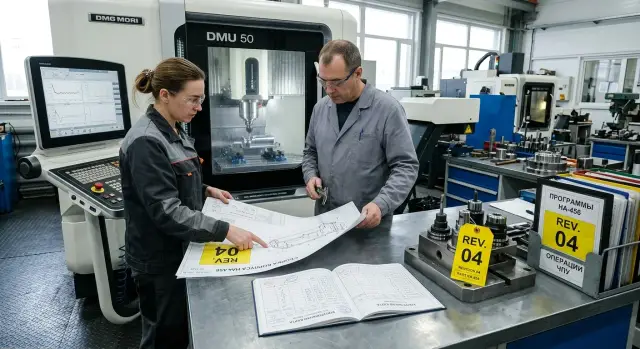
Why confusion starts after a drawing change
The problem rarely begins with a major change. More often, one diameter, tolerance, or chamfer is updated, while old files, an old sheet, and the previous tooling are still on the shop floor. From the outside, everything looks familiar, so people see the usual part name and work from memory.
After a drawing revision change, habit is the biggest risk. The setup technician is in a hurry and opens the previous program because it already worked on that machine. The operator grabs a tool set without a new label. The inspector looks at a sheet left over from the last batch and measures the wrong dimension. Everyone takes a reasonable step, but the batch is already running to the old version.
Small details make the confusion worse. The file differs by just one letter or number in the name. The paper drawing is lying next to the new one. The machine still has the program from the last run in memory, and nobody deleted it. If the revision changed only one section of the part, the error may stay hidden for a long time: the first parts look fine until the check reaches the changed area.
There is also a simple everyday issue: changes are often passed on verbally. Someone says, “they only corrected the size.” Someone else hears, “you can run it as before.” Phrases like that save a minute, but they remove precision. When there is no clear mark on the program, tooling, and control sheet, everyone understands the change differently.
Another risk area is the warehouse and tool room. The storekeeper may issue the previous tooling if the new revision does not have a noticeable label. For them, the part name is still the same, and the order looks normal. In the end, the machine gets a set that almost fits, but not the new requirement.
Usually, confusion is not caused by one big mistake, but by a chain of coincidences. The old file sits next to the new one. Nobody removed the old control sheet. One person is rushing, the second trusts memory, the third checks the wrong parameter. If the revisions are not separated physically and visually, the first batch after the drawing change can easily mix two versions in one box.
Where revisions are most often mixed on the shop floor
Confusion usually starts not during machining, but where people pick up information and tooling with their hands. After a drawing revision change, the part is already new, but traces of the old version are still on the shop floor. Because of this, the first batch can come out as a mix: the program is new, the jaws are old, and the QC folder still has the previous size.
The error most often hides in the program folders on the machine and on the shared drive. The operator sees similar file names, opens the wrong version, and starts the old toolpath. If there are duplicates on the network, the risk only grows.
The next weak point is the drawers with jaws, mandrels, and plates. Tooling from the previous revision often fits “almost the same,” and that is exactly what makes it dangerous. A similar set is easy to grab from memory, especially in a hurry.
Paper setup sheets by the machine cause just as many problems. The old sheet often stays near the workstation because it “has not been removed yet.” In the end, the setup technician sets dimensions and tool overhang from that sheet instead of the new one.
The same thing happens in the QC folder. If both versions of the control sheet are there, the inspector may take the familiar template from the previous operation. Then they will check the wrong dimensions or miss the new tolerance.
The last common mixing point is the container. If the box, tray, or pallet still has the old label, parts from the new revision can easily be mixed with leftovers from the previous batch.
On a turning shop floor, it looks very ordinary: the program already has the updated diameter and chamfer, but the machine still has the old setup sheet, and the container has the old label. The machine makes the part by one logic, inspection checks by another, and the warehouse labels it by a third.
Revision mixing almost always happens where there is no single clear sign of the new version. That is why, on the shop floor, it is better to check not only the CNC program file, but everything around it as well: the tooling, the paper by the machine, the control sheet, and the container for the first batch.
How to name programs so the operator does not have to guess
The most common mistake after a drawing revision change looks ordinary: files on the machine are named something like det_25_new, det_25_final, and det_25_04. The operator has to guess which one is the working file. On a CNC shop floor, that quickly turns into defects.
A program name should answer two questions: what part it makes and which revision it was released for. If the part number is not visible in the name, the file can easily be confused with a similar job. If there is no revision, the drawing change remains a verbal agreement, not a document.
A simple template works better than complex codes: part number, operation designation if there are several, revision, and release or edit date. For example: 1543_OP10_REV_C_2025_04_12. That file is easy to read at once.
The date should come after the revision, not instead of it. That matters. The date shows when the file was saved, but not which drawing was used. Two files saved on the same day can belong to different revisions.
Next, you need order in the folders. Keep the working version separate from old ones. If the current program sits next to the archive and differs by just one letter, sooner or later someone will open the wrong file. It is better to have one folder for the current run and a separate archive for retired versions. Old programs are not deleted, but they are not kept mixed together either.
The same revision name should appear on the setup sheet. If revision C is loaded in the machine memory, but the operator’s paper copy says revision B, they may honestly work from the wrong version. This shows up especially often when a diameter, chamfer, or groove depth changes, but cutting conditions stay the same and the error is not obvious.
After the first good part is confirmed, remove extra copies from the machine right away. Not later and not at the end of the shift. Delete the old file from the program list, remove the previous printout, and take away any backup USB drive with the outdated version. There should be one program and one setup sheet left at the workstation. Then the operator simply has nothing to choose from.
How to mark tooling and tools
When the drawing revision changes, confusion often starts not in the program, but at the tooling shelf. The operator sees familiar jaws or a mandrel, grabs them from memory, and the new batch goes into the machine with the old set.
The marking should be easy to see from a few steps away. A tiny note written with a marker on the end face hardly works. It is better to hang a large tag with the part number and revision, for example: “Part 25-014, Rev.B.” Use the same code on everything that works together: jaws, mandrel, plate, adapter.
One code for the whole set greatly reduces the risk of error. When the jaws say one thing, the plate says another, and the box says a third, people start checking from memory. That is exactly how defects appear in the first shift after a drawing update.
It is better to store old and new tooling on different shelves, or at least in different bins. The old revision should go to a separate place with a clear note like “Do not run without confirmation.” That is not about order for order’s sake. If two sets are side by side, they will get mixed up even by experienced staff, especially on the night shift or during an urgent launch.
Tools are worth marking according to the revision logic as well, if the change affects size, chamfer, fit, or depth. If the new version makes the hole smaller, check not only the drill number, but also the chuck condition, overhang, runout, and cutting edge wear. The first batch does not forgive small things.
A good simple example: the chamfer was 0.5 and became 1.0. The old chamfering tool looks the same, but the result is different. That is why only the set that matches the new revision should stay next to the machine. Everything else is removed before startup, not after the first questionable part.
What to write in the control sheet
The control sheet should immediately show which version of the part is being run. If the header does not include the drawing number and the revision after the drawing change, the sheet quickly loses its purpose. The old printout remains on the shop floor, the operator takes the wrong sheet, and the old batch gets mixed with the new one.
What the header should include
At the top of the sheet, repeat the details a person sees first on the drawing: part number, drawing number, revision, release date, and the name of the person who issued the sheet. Do not rely on memory or paper color. Paper is easy to mix up, while a revision number is much harder to confuse.
If the part was revision B and is now C, write it clearly: “Drawing XXX, revision C.” For the first batch after a drawing change, it helps to add a short note: “First batch.” For the shop, it is a small detail, but it works well.
What to bring to the top
Do not hide the changed dimensions in the middle of the sheet. Put them first, even if they come later in the operation sequence. The operator and inspector should see right away the places where the revision changed the part.
Each such dimension should have its own clear line: what exactly to measure, what nominal and tolerance are needed, what to measure with, where to measure, and who signs off the first approval.
The line “Diameter 20” is too vague. It is much better to write: “Diameter D20, 20.00 +/-0.02, measure with a micrometer.” If the dimension depends on a datum, name the datum too. If the chamfer must be measured with a template or angle gauge, write that down as well. Otherwise one person will use calipers, another a gauge, and you will get two different assessments of the same part.
When the parts look similar, add a small sketch showing the measuring location. A simple outline with a mark for the surface, hole, or side of the part is enough. This is especially useful if one of two similar holes was changed or the chamfer moved to another edge.
Leave a separate field for first approval. Usually it should include the date, time, first part number, operator’s signature, and the signature of the person who accepted the part. Without this, the first batch after the drawing change often goes into production too early.
A good control sheet does not look “smart.” It simply leaves no room for guessing. If a person can see the revision, the changed dimension, the measuring method, and the first approval signature on one sheet, the chance of confusion drops significantly.
The first batch startup sequence
When the drawing revision changes, you cannot start with a series run. First, the shop floor must assemble one set of documents and tooling that belongs only to the new version. If an old drawing is on the table, a new program is in machine memory, and the old entry is still on the sheet, an error is almost guaranteed.
Start with a simple check. The operator, setup technician, and inspector look at the same revision number in four places: on the drawing, in the program name, on the tooling label, and in the control sheet. If even one point does not match, the launch is stopped until it is corrected.
A short review right by the machine works well. It takes 3–5 minutes, but it often saves the batch. It is enough to say what changed in the drawing, which dimensions should be checked first, and how the new setup differs from the previous one.
Next, make one part, not a batch. First check the exact places that changed after the drawing revision update. If, for example, the hole diameter and chamfer size changed, first check the hole, the chamfer, the related coordinates, and surface finish if it is specified.
After that, move on to the basic dimensions that hold the whole setup together: distances from the datum to machined surfaces, fit diameters or groove width, overall part length or step height, the position of holes relative to each other, runout, and concentricity if they matter for the part.
This order is needed for a simple reason. A changed dimension may come out correct by chance, while a base dimension will immediately show whether the part is set correctly and whether the whole setup is working as intended.
Only after the measurement does the inspector and the operator enter the result into the control sheet. It should clearly show which revision was launched, who checked the first part, what exactly changed, and what actual dimensions were obtained. A verbal “everything is fine” is not enough. A shift later, or next week, nobody will remember the details.
Only after that record is made may the series begin. If the first part does not pass inspection, it is better to spend another 20 minutes on adjustment than to later sort through a box of parts and look for where the old and new revisions got mixed.
Example: the hole and chamfer were changed
The part kept the same part number. Only the revision was raised: it was Rev.B, now it is Rev.C. On the shop floor, this is a risky case. The operator sees a familiar part and can easily assume everything stayed the same.
Here, only two parameters changed: the hole diameter and the chamfer angle. Externally, the body is almost the same. These are exactly the kinds of changes that most often confuse people during startup, especially if the drawing revision change came in the middle of the week, not together with a new order.
The setup technician renamed the program right away for the new revision. The name was kept simple and readable, without similar endings or old copies. The old file was not left in the machine’s shared list; it was moved to the archive. If the old version sits next to the new one, an error is almost inevitable.
The tooling was handled the same way. A bright tag with the new revision was attached to the mandrel. It is visible right away when the operator picks up the setup after a break or hands the machine over to another shift. This kind of marking works better than verbal agreements: memory fails, but the tag stays in place.
In the control sheet, the two dimensions that drove the drawing change were moved to the top: the hole diameter and the chamfer angle. Not in notes and not on the second page, but at the very top. The inspector and operator look at the same line and do not waste time searching.
The first part was not sent onward out of habit. It was handed to the inspector before the full batch started. He checked the hole, the chamfer, and confirmed that the part matched Rev.C. Only then was the machine released for series production.
In short, the batch was saved by three simple actions: clear CNC program labeling, a visible tag on the mandrel, and first-part inspection before mass production. This is not bureaucracy. It is a way to avoid losing half a shift on parts that later have to be reworked or scrapped.
Mistakes that quickly ruin a batch
The most common mistake after a drawing revision change is writing just “new” on documents and in folders. A week later, nobody remembers what exactly counted as new. The operator sees two programs, the supervisor sees two sheets, and the shop floor starts living by memory. For a CNC shop floor, you need a precise order: the revision must be stated by number, and if needed, by release date too.
Keeping old paperwork next to working documents causes just as many problems. If the previous control sheet sits in the same file without an “archive” label, it is easy to take it by habit. The same thing happens with the route sheet, the dimensional printout, and the setup sheet. People rarely reread the whole document from the beginning, especially when the batch is already waiting for the machine.
A batch is often ruined by ordinary file copying. The technologist takes the old program, changes a few lines, but forgets to change the file name. In the end, there are two versions with similar names on the network, and the operator chooses the wrong one. The mistake seems small, but it quickly turns into defects, especially if the hole, chamfer, or datum changed.
There is also a quieter mistake: the drawing is already new, but the container and label are still the old ones. Parts after the first shift are placed in an old box with the old revision on it, and confusion begins at receiving and in QC. If the first batch after the drawing change went into the same container without new marking, the two versions will almost certainly get mixed.
Another common slip is checking only the dimension that changed. That is understandable: everyone looks at the new hole or the different chamfer angle. But basic dimensions, datums, and overall length are sometimes missed in a hurry. And that is exactly where a zero shift, wrong tool correction, or old tooling often shows up.
Usually, defects start with one of five failures: the program name is vague and does not include the revision, the old sheet sits next to the working one without an “archive” mark, the file was copied but the name was left unchanged, the container or label stayed from the old version, or the first inspection covered only the changed dimension.
When the drawing revision changes, it is better to spend an extra 10 minutes before startup than to later sort out a mixed batch part by part. In practice, it is cheaper to label the program, tooling, sheet, and container clearly once than to search for where exactly the old revision came back into the process.
A quick check before startup
Before the first part after a drawing revision change, you do not need a long preparation. A short check right by the machine is enough to keep the old version from going into production out of habit.
Most often, people do not make mistakes in the cutting itself, but in the small things: they take the wrong sheet, leave the old program name, or do not replace the label on the container. Then the parts look similar from the outside, but the batch is already mixed.
Before startup, check five things:
- The drawing. The work must use the sheet with the correct revision, and the old copy should not be lying nearby in a folder, on the table, or by the control panel.
- The program name. The CNC program label should match the sheet designation: part number, version, and, if that is your standard, the date or change number.
- The tooling and tools. The tooling label should show that the set matches the new revision, not the previous size or old datum.
- The control sheet. The new dimensions and the changed areas should be at the top so the operator and inspector check them first.
- The container for finished parts. No old labels, tags, or route sheets should remain on the box, pallet, or tray.
A simple example: only the hole diameter and chamfer were changed in the drawing. The part looks almost the same, so people relax. But if the program is labeled with the old revision, and the old tag is still on the container, the first batch after the drawing change can easily go out mixed.
This check takes a couple of minutes. If even one point does not match, it is better to stop the launch right away. First fix the labels, the sheet, and the container, then cut metal.
What to lock in after the first startup
Work does not end after the first good part. If, after a drawing revision change, the team leaves everything as a verbal understanding, the next shift can easily pick up the old program, the old sheet, or the previous tooling.
It is better to immediately write one short rule and keep it by the machine and in the shop’s shared folder. It only needs to record how programs are named, how tooling is marked, what is written on the control sheet, and where the working version is stored. You do not need a long procedure. You need one page that can be read in a minute.
Also assign one person per shift to release the new revision into production. That can be the supervisor, setup technician, or shop technologist. What matters is that everyone knows one name. That person checks that the operator received the correct program, the old version was removed from the working folder, and the labels on the tooling and sheet match.
Keep old files, printouts, and sheets separate from working documents. If the archive sits next to the current documents, confusion is almost inevitable. Simple separation helps in folders: “working” and “archive.” On paper, use a separate tray or a different-colored folder. Do not throw away the old sheet, but it should not end up in anyone’s hands by accident.
A short review of each mistake at the shift briefing is also useful. No long reports needed. It is enough to record in 3–5 minutes what was mixed up, where it was found, what label or rule is changing, and who will check it in the next shift. That works better than broad phrases like “be more careful.”
When the shop floor is preparing a new launch, moving a part to another machine, or selecting equipment for a new product line, an outside view can help. EAST CNC, the official representative of Taizhou Eastern CNC Technology Co., Ltd. in Kazakhstan, helps with machine selection, startup, and service support. If the task is broader than just a revision change, that experience often saves time at launch.
A good sign of order is simple: a new employee opens the folder, takes the sheet, looks at the tooling, and understands in a minute which revision is currently in use. If that does not happen, the rule has not yet been locked in.
FAQ
Where do I start after a new drawing revision is released?
First, gather one complete set for the new version: the drawing, the program, the tooling, the control sheet, and the container. Then the operator, setup technician, and inspector check the same revision in all these places and only then start the first part.
Where on the shop floor are old and new revisions usually confused?
Most often, revisions get mixed up in the program folders, at the tooling shelves, in the papers by the machine, in the QC folder, and on the parts container. People grab a familiar file or an old label from memory, and the mistake goes into the batch.
What is the best way to name a CNC program after a revision change?
Give the file a clear name: part number, operation, revision, and date. A format like `1543_OP10_REV_C_2025_04_12` is easy to read and leaves no room for guessing.
Should old programs stay in the machine memory?
Yes, remove them right after the first good part is confirmed. If the old version sits next to the working one, sooner or later someone will run the wrong file.
How should tooling be marked so it is not mixed up?
Hang a large tag with the part number and revision on the whole set: jaws, mandrel, plate, adapter. Store the old and new tooling separately so the operator does not choose by memory.
What must be written in the control sheet?
In the header, write the part number, drawing number, revision, date, and the name of the person who issued the sheet. Put the changed dimensions at the top and note right away what to measure them with and who confirms the first part.
How do you correctly launch the first batch after a drawing change?
Do not start the full batch right away. Make one part, check the changed areas first, then the base dimensions, and only after the sheet is signed off move into series production.
If only one dimension changed, can we keep working as before?
No, that is risky. Even if only one diameter or chamfer changed, old tooling, tool overhang, or the previous sheet can easily create defects in the first batch.
What should be done with old containers and labels?
Remove the old labels and mark the container with the new revision before startup. If you leave the old marking, the warehouse and QC will quickly mix the two versions in one box.
Who should be responsible for releasing a new revision into production?
Assign one person on each shift to release the new revision into production. The supervisor, setup technician, or technologist should check the files, paperwork, tooling, and remove old versions from the workstation.