
Collision Risk When Debugging a CNC Program: a Checklist
Reduce collision risk when debugging a CNC program with simple steps: simulation, verifying zeros and offsets, a dry run and a cautious first start.
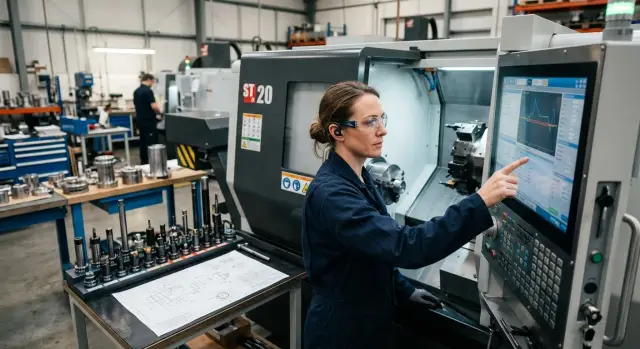
Why a new program can hit the machine
A new program can cause a collision even when the trajectory on the screen looks correct. Often the issue is not geometry but a mismatch between the program, zeros, the tool and the actual setup.
Collisions usually happen because of several small mistakes, not a single gross error. The most common case is confusion between the machine zero and the part zero. If the operator shifted the part zero up, down or sideways, the machine will faithfully execute the wrong coordinates.
Even a few millimetres are dangerous. On a roughing pass that may mean too much material removed; during a rapid move it can cause the tool to hit the chuck, jaws, vise or the workpiece.
Another common cause is an incorrect tool length. If the wrong stick-out is in the offset table, the error won't show on the screen but will appear in the metal. A drill will go deeper, a cutter will pass below the intended plane, or a tool will come closer to the part than expected.
Rapid moves are especially dangerous. During cutting the operator can still notice odd motion and stop the cycle. On a rapid move there is almost no time. An error you could spot in a second turns into a collision in a fraction of a second.
There is also a simple trap — a missing line in the program. A missing Z retract, safe approach or a compensation call can break the whole route. In code it looks like a small omission, but the machine behavior changes completely.
This often happens after manual edits. A programmer changes a dimension and accidentally removes the line with the safe retract. Sometimes the simulator shows the problem immediately, but sometimes the error only appears at one point during the first run.
A collision almost never happens "out of nowhere." Usually it’s a chain: an old offset remained in memory, the tool was measured with error, and the first move is a rapid. So loading a program without errors doesn’t mean it’s ready. First check that the virtual trajectory matches what’s actually set on the machine.
What to verify before simulation
Most problems start before simulation. The program may be written correctly for a different fixture, tool or part setup. Eliminating this confusion early greatly reduces collision risk.
Open the drawing, the setup sheet and the program side by side. Check the dimensions, datum surfaces, zero point and the operation sequence. If the drawing assumes the datum from the left face but the program calculates from the right, the error will appear on the first approach.
Separately verify the coordinate system and the machining plane. On both turning and milling small details quickly cause problems. Wrong G17, G18 or G19, a swapped work zero, an extra offset on X or Z — and the path will go somewhere you don’t expect.
Before simulation go through a few simple checks: the datum on the drawing must match the program’s datum, the correct work zero must be selected on the machine, the machining plane must match the operation, and the tool number, offset and actual stick-out must match exactly. Also verify the workpiece clamping: in the chuck or fixture it should be positioned as the program assumes.
Be particularly strict with the tool. Tool number in the magazine, offset number and the actual tool in the spindle or turret must match. If the program calls one tool but the machine has a similar one with a different stick-out, the simulation won’t save you.
The same goes for the workpiece setup. The program may assume the part is clamped at 60 mm, while the operator set 45 mm. On screen this is barely visible, but in practice the tool can hit the jaws or a stop. This error often shows on the first part of a new batch.
If you find a mismatch, don’t change everything at once. Fix one item and re-check the program against the setup. It seems slow, but usually saves tool life, time and the machine.
How to run the program in the simulator
Simulation is not for a nice picture. Its purpose is to show where the tool comes too close to the machine, tooling or part.
Run the entire trajectory from the first line to the last, not just a fragment. Errors often hide between operations: after a retract, before a tool change, on return to zero or at the end of a cycle.
It helps to view the program in two modes. First run normally to see the overall logic. Then slow down and inspect sections with rapid moves. G0 is the most likely source of an unpleasant surprise because the machine is rapidly moving between points.
When checking, watch four things: whether the tool passes the chuck and jaws safely, whether the holder gets too close to the tailstock, whether the tool retracts to a clear safe point before a change, and whether there is a sudden jump in coordinates after calling the next tool.
On a lathe a dangerous moment can look mundane. The first tool finishes a pass and the program gives a rapid X retract but leaves the tool too close to the chuck in Z. Then a tool change occurs and the new tool enters an area with almost no clearance. This is visible on the screen — and on the machine such a small thing can cause a collision.
Pay special attention to transitions into and out of cutting. Operators usually watch the engagement and depth, and a short rapid move between two clean motions is easy to miss. A useful habit is to step through all rapid moves without cutting and ask: "Do I understand every single rapid move?"
If the simulation shows even one doubtful approach, don’t rely on "it will pass on the machine." Go back to the code and correct the safe point, retract order or transition coordinates. Five minutes on the screen often saves tools, the chuck and the operator’s nerves.
Zeros, offsets and tools without confusion
Many collisions are not caused by the toolpath but by confusion in the machine tables. The program and simulation may look fine, but the machine may use the wrong zero or tool length.
First open the code and see which offsets it calls. If the program begins with G54 but the operator left a different offset active or filled the wrong row, the tool will move to the wrong place on the first approach. The same applies for G55, G56 and other work offsets: the program, the setup and the actual part datum must match.
Check not only the active offset but its value. After the previous part an old Z or X offset often remains in the table, and a few millimetres difference is already dangerous. For a new part it’s better to re-check the datum point you measured from.
Be equally strict with the tool. Each tool number in the program must match the actual slot in the turret or magazine and the offset number. If the right tool is in place but the offset table still contains the previous length, the machine will approach higher or lower than calculated. Also verify the nose radius and insert orientation, especially for finishing passes and shoulder approaches.
After a part change or re-setup don’t leave old tweaks "for later." Wear, temporary adjustments and manual corrections that helped yesterday often interfere today. Before a new debug run, clear unnecessary entries and leave only what relates to the current setup.
Before start it’s useful to do a short check: compare the G54/G55 calls with the filled table, verify the tool number, offset number, length and radius, remove old adjustments and manually jog a small move on each axis. The last step is often underestimated. A simple manual move immediately shows whether the machine understands axis directions correctly. If a command to move to the safe positive doesn’t go the expected way, don’t run the program yet.
Step-by-step dry run
The first run of a new program should be slow, even if the simulation was clean. On the real machine problems often arise from offsets, tool length or a single incorrect rapid move. A dry run helps catch these before touching the part, chuck or tooling.
First move the tool to a safe height. For turning this means clearance in X and Z relative to the chuck, jaws and workpiece. For milling it means Z clearance above the part, vises and clamps. If the trajectory starts too close, don’t start the cycle until you correct the start point.
Then reduce speed. Set feed and rapid moves to 5–10%, and for the very first start even lower. If the control supports single-block, use it on the first lines. A few extra minutes here usually cost far less than a repair.
What to watch in the first minutes
Step through the first moves one at a time and keep your eyes on the work area. Watch not only the tool tip but everything moving nearby. Is there enough clearance to the chuck, jaws and clamps? Is X, Z or Y moving the right way? Is the correct tool and offset active? Where will the next rapid occur?
Pause before each tool change. Check the tool number, length or radius offset, current position and clearance to tooling. This is where simple confusion often appears: the program calls one tool while a different one sits in the turret or magazine.
When the first risky areas are passed calmly, let the program run the full cycle without cutting. You can keep the workpiece away from the cutting zone or maintain a safe gap above it. The point is not to "almost machine" the part but to see the whole motion logic from start to finish.
If the full cycle runs cleanly, proceed to a first trial cut. Rushing this step almost always costs more than an extra slow pass.
Example: first check for a new part
Imagine a simple first setup on a lathe: a short bar in the chuck, a single roughing tool in the turret, and a new program. Don’t start cutting immediately. First remove confusion about datums and see how the machine "sees" the part.
First verify the part zero on the face and on the diameter. For the face check that Z origin is set correctly; for diameter check X for errors caused by wrong touch-off, offset or writing the value into the wrong offset number. Even a small mistake here is dangerous, especially on the first approach.
If the zero checks out, don’t immediately cut the profile. Run it in the air, above a safe level, at reduced feed. The operator watches not only the cutter path but transitions: where the tool approaches the face, how it exits the diameter, and whether there is any lateral motion toward the chuck or jaws.
On turning operations the dangerous moment often appears not during the cut but at a tool change. If after the roughing tool the program calls a cutoff tool, watch that transition closely. The cutoff tool has different geometry, stick-out and clearance to the chuck. On a short bar the available distance is already small, so a wrong Z move can hit a jaw.
The order is simple: verify the part zero by touch, run the first moves at reduced feed, stop before calling the cutoff tool and re-evaluate clearances. Only after a clean dry run does a shallow trial cut make sense.
A trial cut is not about speed. It is to observe program behaviour under load and check dimensions after the first pass. If the machine removes the expected thin layer and the tool behaves safely, gradually move toward the working regime.
A dry run then becomes more than a formality. It exposes not only code errors but everyday details: a forgotten stick-out, wrong offset, or an approach too close to the chuck. For the first part this is enough to save tools and the machine.
Errors that most often lead to a collision
Collisions are usually related not to a complex path but to confusion in the starting data. The program may look fine on screen, but the machine will collide if the part zero is swapped, an old tool offset remains, or the cycle was started too fast.
The most common mistake is mixing up the part zero and the machine zero. On screen the operator sees familiar coordinates and assumes the first point is safe. But the machine uses a different datum and the rapid move goes to the wrong place. On a lathe this often takes the tool into the chuck or into the face at the first move.
Old tool offsets cause no fewer problems. A tool was removed, reground or replaced, but the offset table still contains yesterday’s stick-out. A few millimetres difference is enough for a drill to go too deep, a cutter to engage too early, or the turret to come too close to the tooling.
Another common mistake is ignoring the machine travel. A point that is acceptable for the part may be unacceptable for a particular machine with the chuck, steady rest or a long tool installed. After a manual edit this is especially frequent: one coordinate was changed but travel margins weren’t checked.
Pay attention to sign errors. One missing minus changes movement direction. Instead of retracting, the tool can move into the part. Instead of a safe lift, an axis descends into the clamping zone. These things are hard to notice when checks are rushed.
Before a collision there are usually noticeable signs: the first position looks farther than usual, the tool number doesn’t match the turret, the offset table didn’t change after a tool swap, the machine reaches travel limits sooner than expected, or the first run was started at full feed.
The last point is underestimated most often. If you start the cycle at normal speed, there is almost no time to react. An error in a single line becomes a collision in a second. It’s much safer to spend a couple more minutes on a slow first pass.
Short checklist before the first cut
You don’t need to re-check everything before cutting. Go through five points where mistakes most often cause collisions.
First compare the part zero with the setup sheet. Screen coordinates, program and setup sheet should point to the same datum. Then ensure each tool is in its slot and the numbers match in the turret, table and program. Next check length and radius offsets: an empty cell, an extra minus or an old tweak from the previous part can move the tool by a few millimetres.
Then limit the feed. On the first run it’s better to lose a minute than to give full speed on an unverified trajectory. Finally, keep your hand near the stop and don’t leave the machine. The first cut is not the time to be distracted by a phone or conversation.
A useful habit is to read the list aloud or tick items with a pencil. It sounds simple, but simple things are where people err most when they rush.
For example, the program may look clean after simulation but a real risk remains. On a lathe T0202 might not be in the correct slot and the table may still hold the old length. On screen everything is calm, but in practice the situation will be different.
What to do after a successful run
A successful dry run is not the end but the moment to lock in the procedure. If you don’t, the next shift may run the wrong version, forget the temporary feed limit, or restore an old offset.
Immediately record what you changed for zeros, offsets and feed. Don’t rely on memory. If you shifted Z in G54 by 0.8 mm, reduced rapids to 25% and adjusted one tool length, these changes should be stored with the program and the setup sheet.
Save the working version separately from drafts. Even a simple file naming convention prevents confusion: for example, "part_17_draft" and "part_17_run_ok". If you have multiple machines, add model, date and revision. Then the operator won’t have to guess which file passed the dry run and which is still being edited.
Leave short notes about places where the program ran close to risk. Usually it’s not the whole path but a few specific points: approach to the chuck, a tool change with a long holder, the first drill engagement, return after a subprogram. Next time the operator won’t have to search for danger zones.
A simple minimum is enough: record actual zeros and temporary offsets, save a separate working program, mark lines or operations that need special control, and only restore feed to normal after re-checking.
If the part goes into series, add a couple of short comments in the code and on the setup sheet. A phrase like "check clearance at the jaws" or "first pass at reduced feed" usually works better than a long explanation. These notes are read right at the machine.
Sometimes a successful first run reveals another issue: the program is fine but the machine, tooling or setup scheme is already at its limits. In that case an outside view is helpful. EAST CNC supplies CNC lathes and machining centers and also handles selection, commissioning and service. If the dry run shows the issue is not the code but the equipment or setup, such a discussion is appropriate.
FAQ
Why can the machine hit something if the simulation looks fine?
Most often the reason is not the toolpath itself but a mismatch between the part datum, offsets, tool compensation and the actual setup. On the screen the path looks fine, but the machine calculates coordinates from a different reference and moves to the wrong place.
What should I check before simulating a new program?
First compare the drawing, the setup sheet and the code. The drawing datum, the work zero in the program, the machining plane, the tool number and the actual tool extension must match without guessing.
Why are rapid moves the most dangerous?
Because on G0 the machine is not cutting but quickly moving to the next point. If there is an error in Z, X, or in an offset, there is almost no time to react.
How can I quickly verify the part zero is set correctly?
Check which work offset the program calls (for example G54 or G55) and compare it to the value in the table. Then give a short manual move on the axes and confirm the machine moves in the expected direction.
What matters most when checking the tool?
Look not only at the tool number but also at the tool offset number, length, radius and the real stick-out. If the program calls one tool but a similar tool with different geometry is in the turret, stop the start.
Should I clear old offsets before a new setup?
Yes — it’s better to remove old temporary adjustments before a new setup. yesterday’s tweak can shift the tool by a few millimetres and ruin the first approach.
At what speed should I do the first dry run?
Move the tool to a safe point and reduce feed and rapid moves to 5–10%, and for the very first start even lower. If the control supports step or single-block mode, run the first lines that way.
What to do if the simulation shows a suspicious move?
Stop the cycle and return to the code or the setup. Don’t assume "it will be fine on the machine" if you already see a questionable approach to the chuck, jaws, vises or the part.
What to do after a successful dry run without cutting?
Don’t rush into cutting. First write down which zeros, offsets and feed limits you changed, save a working version separately and mark the spots that need special attention on the next start.
When should I call service or commissioning specialists?
When the problem is not in the code but in the machine, tooling or the setup scheme. In that case it’s worth checking the equipment, travel limits and the overall startup process with commissioning and service specialists.